Prerequisites
- A GymLogic account with at least one logged workout
- Claude Desktop installed (latest version recommended)
Setup
Two steps:
- Add the Custom Connector — wire Claude Desktop to the GymLogic MCP server (~30 seconds).
- Load the GymLogic Skill (recommended) — teach Claude how to use the tools well (~30 seconds).
If you can’t use OAuth or need a headless setup, see Alternative authentication below — Step 1 has a PAT / mcp-remote variant; Step 2 still applies.
Step 1 — Add the Custom Connector
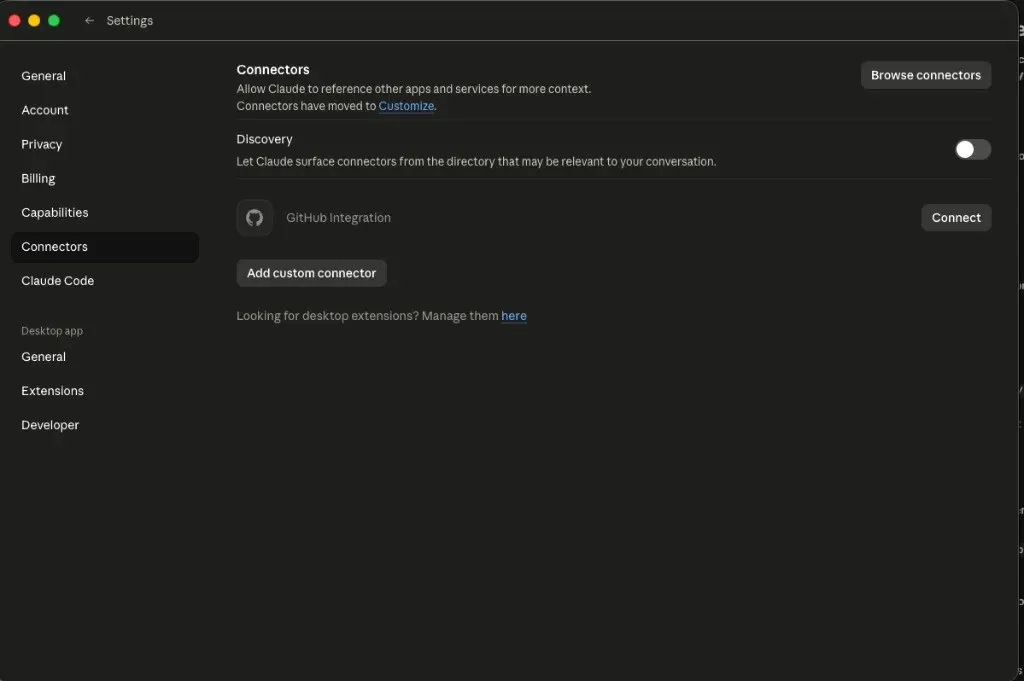
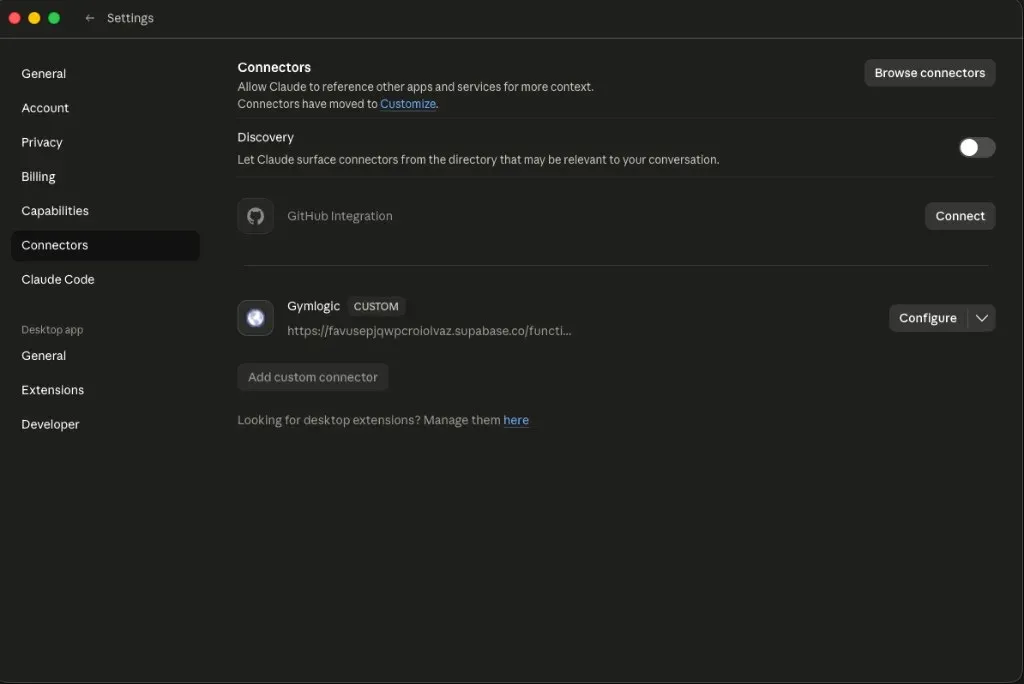
- Open Claude Desktop and go to Settings → Connectors.
-
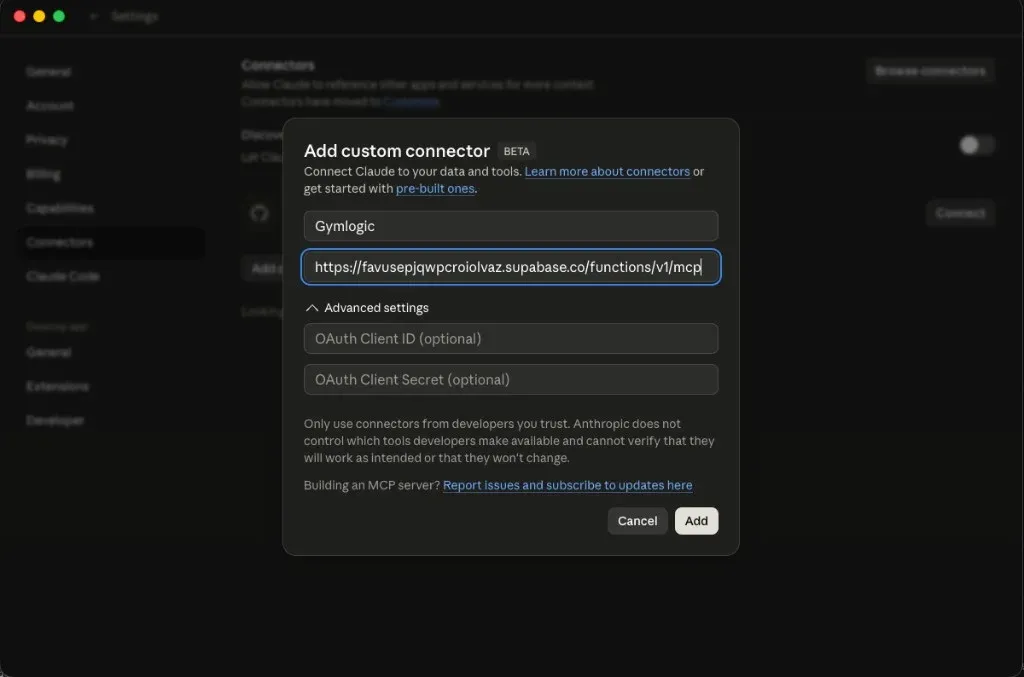
In the Add custom connector dialog, fill in:
- Name:
Gymlogic - URL:
https://mcp.gymlogic.me/functions/v1/mcp - Leave OAuth Client ID and OAuth Client Secret empty — GymLogic uses dynamic registration.
Click Add.
- Name:
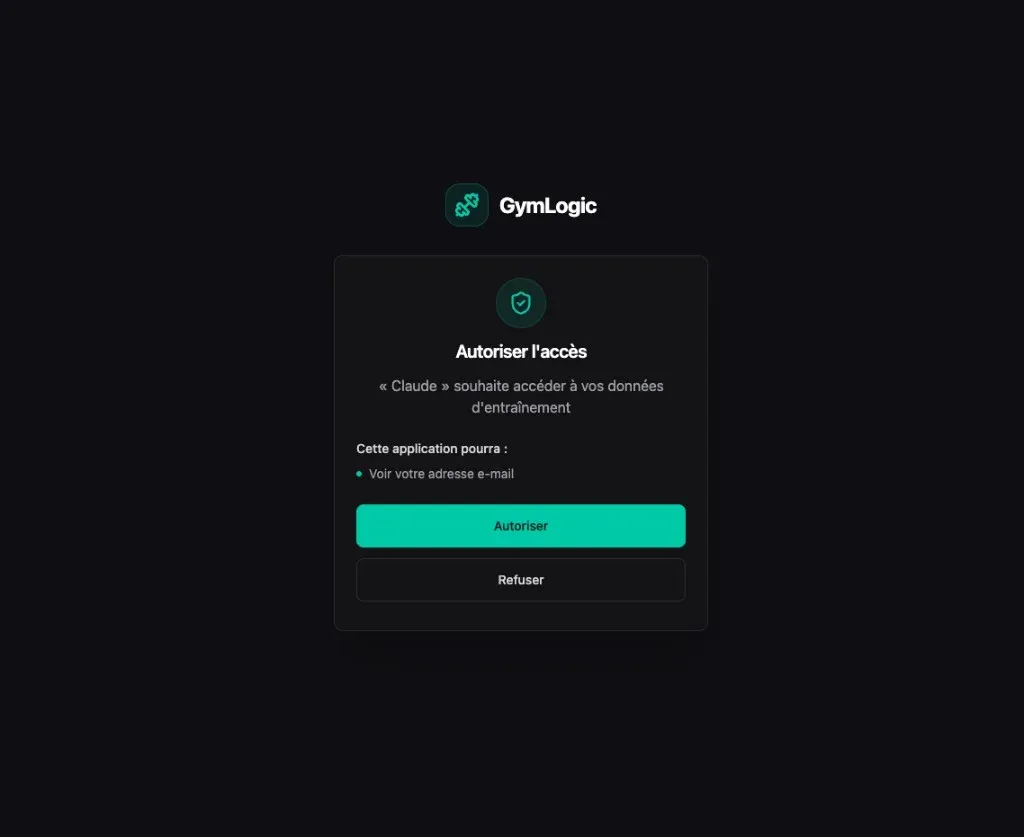
- Your browser opens to the GymLogic consent page. Sign in if prompted, then click Authorize.
- Return to Claude Desktop. The connector now appears in your Connectors list.
Step 2 — Load the GymLogic Skill (recommended)
The connector exposes the tools; the Skill teaches Claude how to use them well — when to invoke each, the propose-confirm-act handshake required on every write, the per-side weight convention for unilateral equipment (#263), and bilingual French/English routing. Without it, Claude can still call the tools, but expect rougher edges (especially on writes and on coaching prompts that cross multiple tools).
-
Download the skill file from the repo:
skills/gymlogic-mcp/SKILL.md. Use GitHub’s “Download raw file” button (top-right of the file viewer). -
In Claude Desktop, open Customize → Skills, click the + icon next to “Skills”, and upload the
SKILL.mdfile.
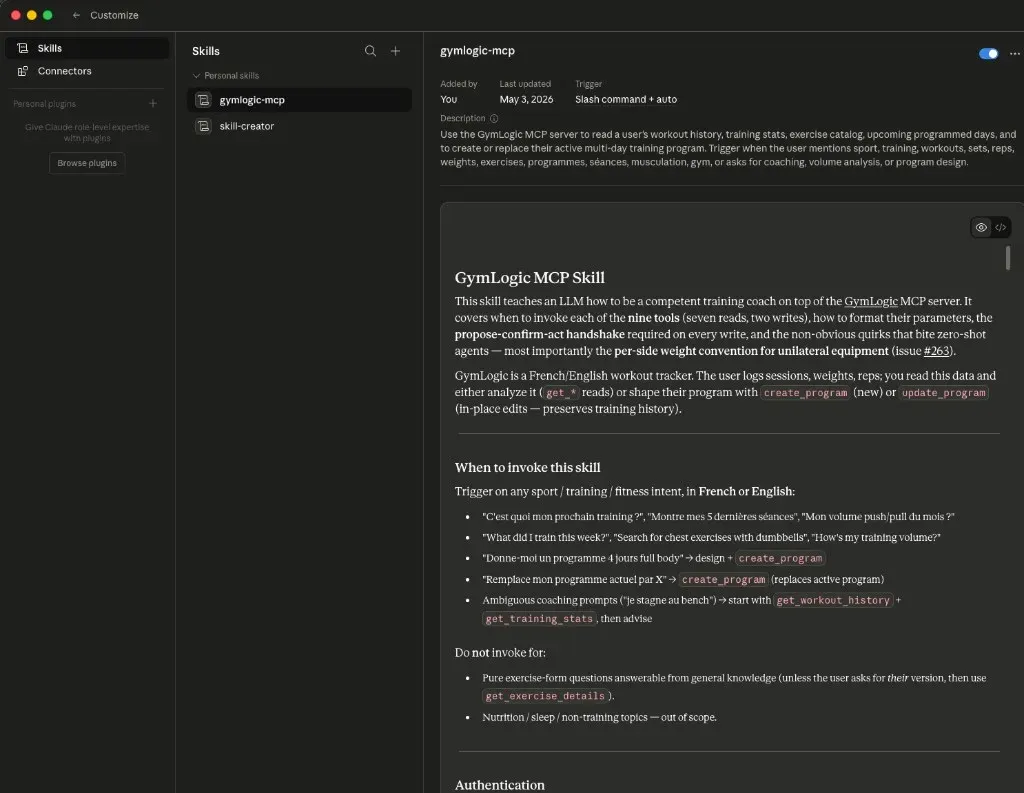
- Make sure the skill toggle is on (top-right of the skill detail panel).
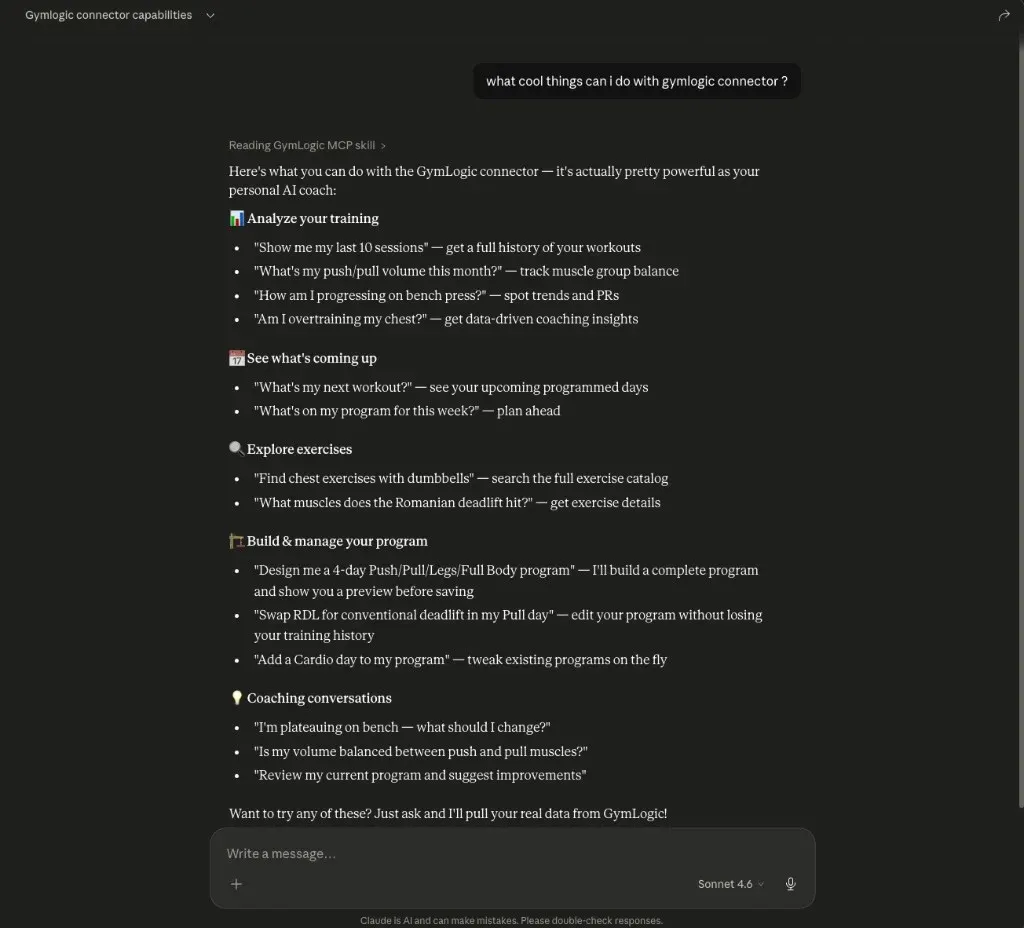
You’re set. The skill triggers automatically on training-related prompts (FR or EN) — no need to invoke it explicitly. The capabilities ask is a good first prompt: Claude will surface the full menu of what GymLogic can do.
Alternative authentication
For headless setups or Claude Desktop builds where the native Custom Connector UI isn’t available, replace Step 1 with one of the alternatives below. Step 2 (the Skill) still applies either way.
Personal Access Token (PAT)
If you want longer-lived auth or a headless setup, use a Personal Access Token instead of OAuth. Create one at gymlogic.me/account/api-tokens → — pick a lifetime, copy the glp_… value (shown once), and use the config below.
The cleanest PAT path on Claude Desktop is via the mcp-remote adapter (since the native UI doesn’t always expose a headers field for SSE servers). Heads up — the adapter has a few sharp edges:
Show PAT config
Edit ~/Library/Application Support/Claude/claude_desktop_config.json (macOS) or %APPDATA%\Claude\claude_desktop_config.json (Windows):
{
  "mcpServers": {
    "gymlogic": {
      "command": "/Users/you/.nvm/versions/node/v20.9.0/bin/npx",
      "args": [
        "mcp-remote",
        "https://mcp.gymlogic.me/functions/v1/mcp",
        "--header",
        "Authorization: Bearer <YOUR_PAT>"
      ]
    }
  }
}
Then fully quit Claude Desktop (Cmd+Q, not just close the window) and reopen. The connector should appear under Settings → Connectors.
Revoke a PAT at any time from /account/api-tokens — revocation is immediate and the next request returns 401.
Config file with mcp-remote (no UI)
For Claude Desktop builds where the native Custom Connector UI isn’t available, or for headless setups, configure mcp-remote directly in ~/Library/Application Support/Claude/claude_desktop_config.json (macOS) or %APPDATA%\Claude\claude_desktop_config.json (Windows). Same Node 18+ requirement and absolute-path recommendation as above.
Show mcp-remote config (OAuth)
{
  "mcpServers": {
    "gymlogic": {
      "command": "/Users/you/.nvm/versions/node/v20.9.0/bin/npx",
      "args": [
        "mcp-remote",
        "https://mcp.gymlogic.me/functions/v1/mcp"
      ]
    }
  }
}
On first run, mcp-remote opens your browser for OAuth. Tokens are cached locally for subsequent runs. Quit and reopen Claude Desktop after saving the file.
Show mcp-remote config (with PAT)
Same as the PAT config above — pass the token via --header.
Available tools
| Tool | What it does |
|---|---|
search_exercises | Search the exercise catalog by name (FR/EN), muscle group, equipment, or difficulty |
get_exercise_details | Full exercise info: instructions, muscles, equipment, media |
get_workout_history | Your past sessions with sets, weights, and PRs |
get_training_stats | Volume by muscle group, personal records, session frequency |
get_upcoming_workouts | Your programmed training days and exercises |
list_programs | List all your training programs (active, drafts, optionally archived) with id, name, day count, creation date, active-cycle flag |
get_program_details | Full structure of one program by UUID — days, exercises, sets/reps/weights/rest. Works on active, draft, or archived programs |
create_program | Create / replace your active program: pass name, days with label + ordered exercises (bare UUIDs for catalog defaults, or full objects with sets / reps / weight_kg / rest_seconds). dry_run defaults to true (preview); set dry_run: false to write |
update_program | Edit an existing program in place by program_id — rename, add / remove / reorder days, swap exercises, revise prescriptions. Preserves all logged training history. dry_run defaults to true; set dry_run: false to apply. Removing days additionally requires confirm: true |
Nine tools — seven reads, two writes. Claude picks the right one based on what you ask.
Example conversation
A good first prompt is the one shown in the hero above — “what cool things can I do with the gymlogic connector?” — Claude surfaces the full menu of capabilities. From there, drill into specifics:
- “What did I train this week?” — pulls your recent sessions
- “How’s my push/pull balance over the last month?” — analyzes volume distribution
- “What’s programmed for tomorrow?” — checks your active program
- “Tell me about the Romanian Deadlift” — searches and fetches exercise details
- “Based on all this, what should I focus on next?” — Claude reasons across all the data
- “Propose a revised 4-day split from that — show me a
create_programdry run, then apply if I confirm” — end-to-end adapt + save (replaces the current active program when applied)
Troubleshooting
| Problem | Fix |
|---|---|
| Connector shows “Not connected” | Click the connector and re-authenticate — the OAuth token may have expired |
| OAuth consent page doesn’t load | Make sure you’re signed in to GymLogic at gymlogic.me first |
| ”Authentication required” errors | Disconnect and reconnect the connector to trigger a fresh OAuth flow, or swap to a PAT (see above) for longer-lived auth |
401 with a PAT | Token was revoked, expired, or mistyped. Create a fresh one at /account/api-tokens |
mcp-remote crashes with SyntaxError | Your Node.js is too old — nvm use 20 or pin the absolute path to Node 20+ npx in your config |
mcp-remote first run fails with EACCES on ~/.npm | npm cache is root-owned from a past sudo npm install. Fix: sudo chown -R $(id -u):$(id -g) ~/.npm |
| No tools available after editing the config file | You probably didn’t fully quit Claude Desktop. Use Cmd+Q (macOS) — closing the window doesn’t stop the process |
Can’t disconnect a mcp-remote-added connector via the Settings UI | The UI’s disconnect endpoint requires a mcpsrv_* ID, which manually-added MCP servers don’t have. Edit the config file directly to remove the entry, then Cmd+Q and reopen |